
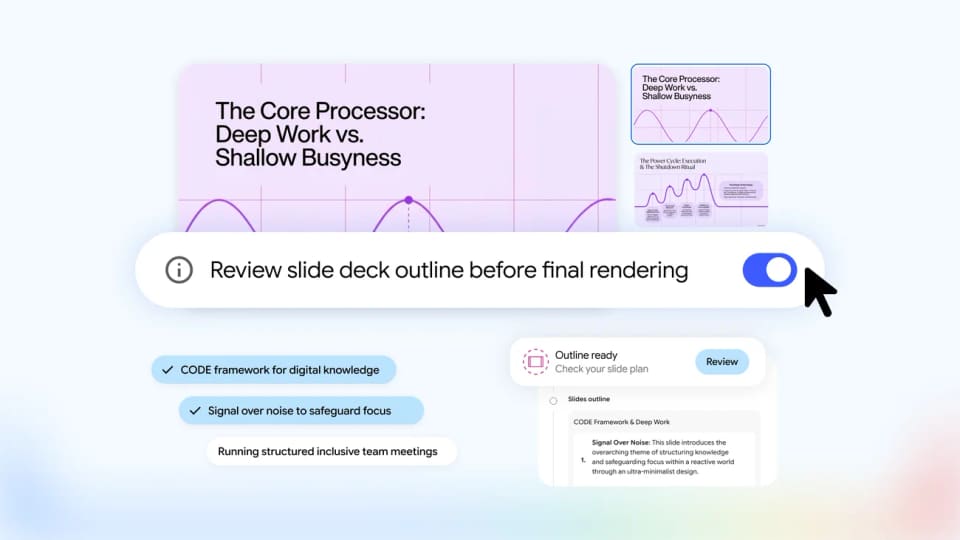
Google is adding a more deliberate creation flow for Gemini Notebook’s Slide Decks and Video Overviews. Its October 19 announcement describes controls for steering the plan before the final presentation or video is generated.
Start with the sources and a plan
Users can ask for slides or a video overview in chat. Notebook suggests topics based on the supplied sources, then lets the user confirm the direction and adjust content, visual style and format.
Someone who already knows the intended output can include those requirements in the initial prompt and go directly to the review flow. The feature therefore supports both choosing a direction and refining a specific brief. It does not require every user to start with a blank outline.
Review the outline before generating
The optional Review toggle exposes planning material in the Studio panel. For slides, the control is labelled “Review outline notes”; for video, it is “Review producer notes.” Users can give feedback before anything renders, then select Proceed when the plan is ready.
Google’s examples include adding an executive summary and changing a scene’s order. Those are useful points at which to check the intended audience and sequence, before attention shifts to the finished visuals.
The existing quick-generation route remains available. Users can skip the review toggle and generate an artifact from the Studio panel as usual.
A practical way to use the extra control
Franklin’s interpretation is that this review step is most useful when the narrative has constraints: a short briefing, a particular audience or a required decision at the end. Check whether the outline answers that audience’s questions, and whether each planned section has support in the notebook’s sources. Reviewing a plan is still separate from checking the accuracy of the finished artifact.
Google says the capabilities are rolling out globally to all users over the upcoming week. A missing control immediately after the announcement does not necessarily mean the account is ineligible.
See Google’s walkthrough for the interface examples.