
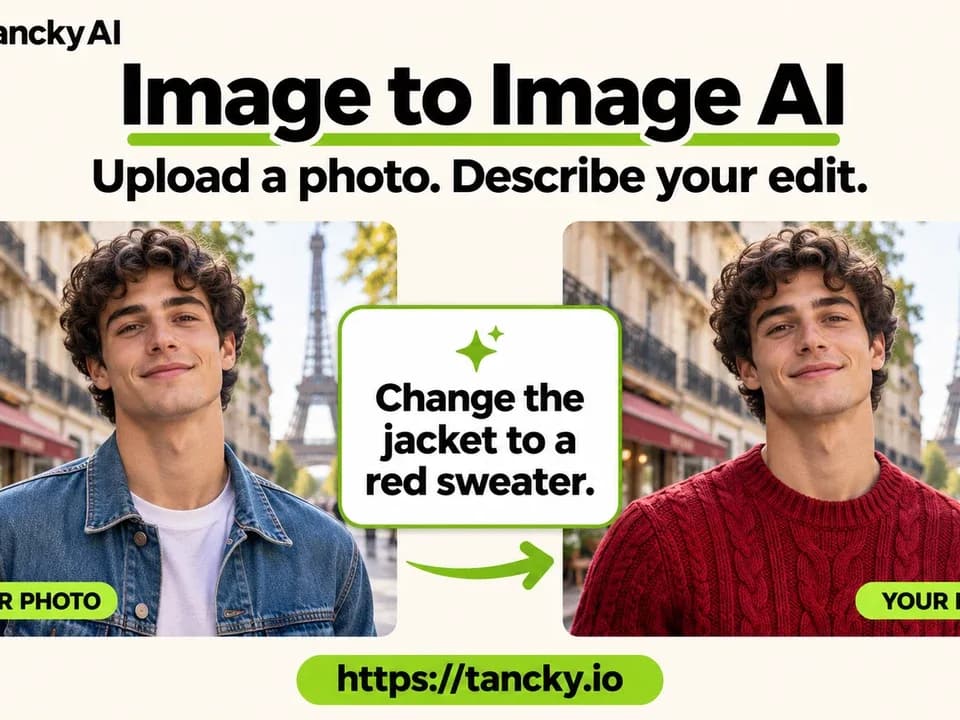
Image to Image AI
Tancky AI edits or restyles an existing image using a written prompt and optional additional references.
Tancky AI's Image to Image AI edits photos and sketches from a text description. Start with the image you want to change, then optionally add references for elements such as an outfit, background or visual style. It is useful when you have a starting composition and want to compare specific changes instead of generating a scene from scratch.
How should you describe an edit?
Upload a sharp JPG, PNG or WebP, then describe the change and the parts you want to keep. The site lists up to six reference images of up to 16 MB each. Type an at sign to refer to a specific image in the prompt. That is helpful when one upload shows the subject and another is only a guide for the setting.
Choose whether to keep the original shape or use another aspect ratio. Then inspect the result against the input. Even a narrowly specified change is a generation, so compare any detail you need to preserve before publishing a result.
What can you do with a generated image?
The provider lists options to upscale, remove or replace a background, extend the frame or erase objects on the result. These can be useful follow-up steps if the first result has the right subject and style but needs a different crop or a cleanup. The service saves results in Projects, with retention depending on the credits used according to the home page.
For another prompt-based editor that accepts visual references, see our guide to nanobanana3.design.
How much does an edit use?
The official FAQ lists 3 credits at 1K, 5 at 2K and 8 at 4K. The Generate button shows the quoted cost before submission. Registration comes with trial credits; paid credits or a subscription remove the watermark according to the provider. Start with a resolution that lets you judge the edit, then move to a larger output when the result is worth keeping.
Before you try it
Frequently asked questions
How do I tell Tancky which uploaded photo to use?
Type an at sign in the prompt to refer to a specific upload, and describe which part of that reference should guide the edit.
Official sourceCan I replace the background without uploading the result again?
The provider lists background removal and replacement among the edits you can make directly on a generated result.
Official sourceHow do I see the cost before I start a generation?
The official FAQ says the Generate button shows the exact credit cost before submission. The cost changes with the selected resolution.
Official source